
K-12 self-service portal software for tickets that never need to be opened.
A branded portal where staff, students, and guardians submit tickets, view their requests, and browse a Help Center. As they describe the issue, we surface matching KB articles in real time, so they self-serve before the ticket ever hits your queue. Less staff time on password resets, more staff time on real work.
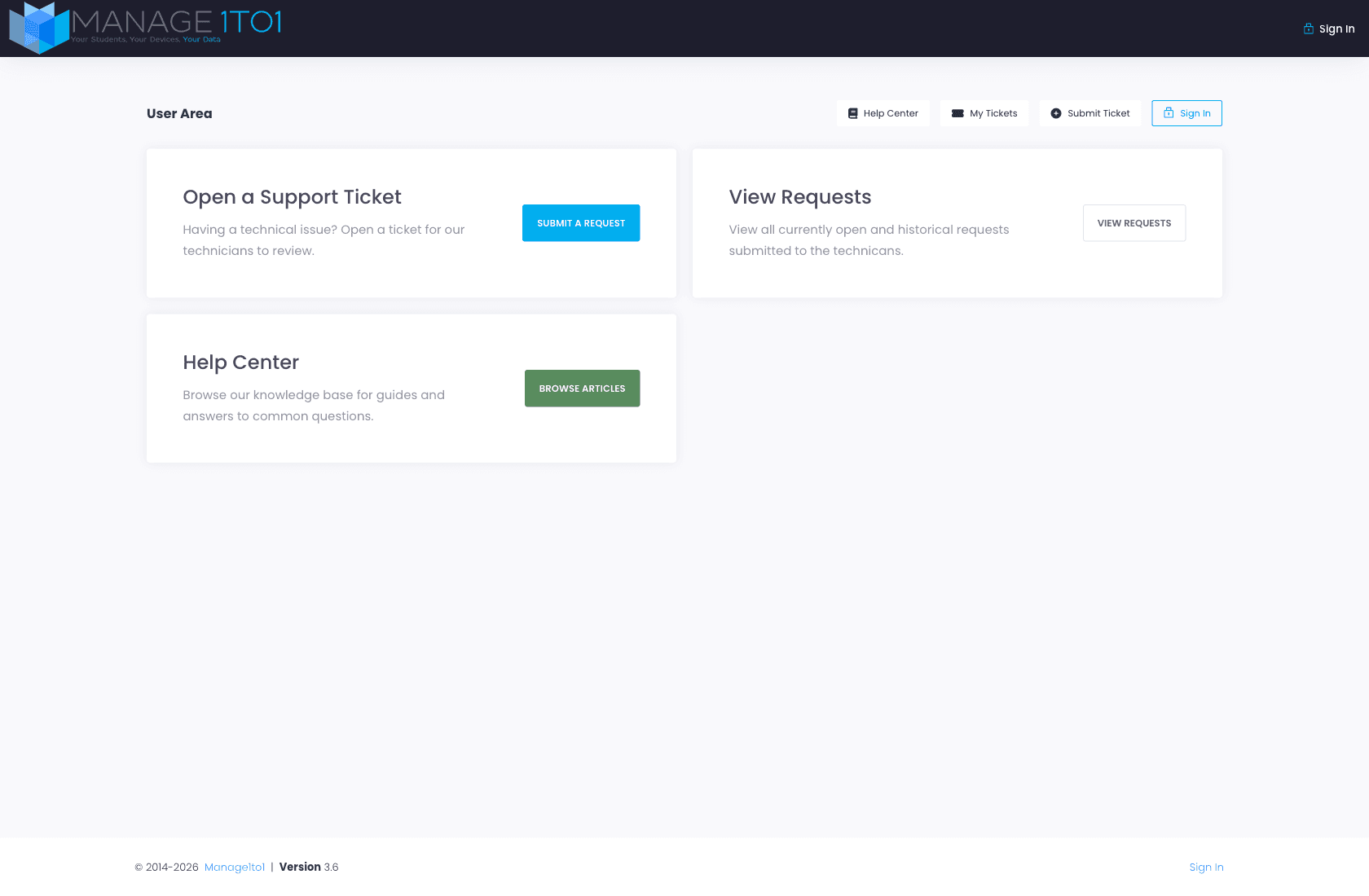
Branded Help Center
Your district's articles, in your district's voice.
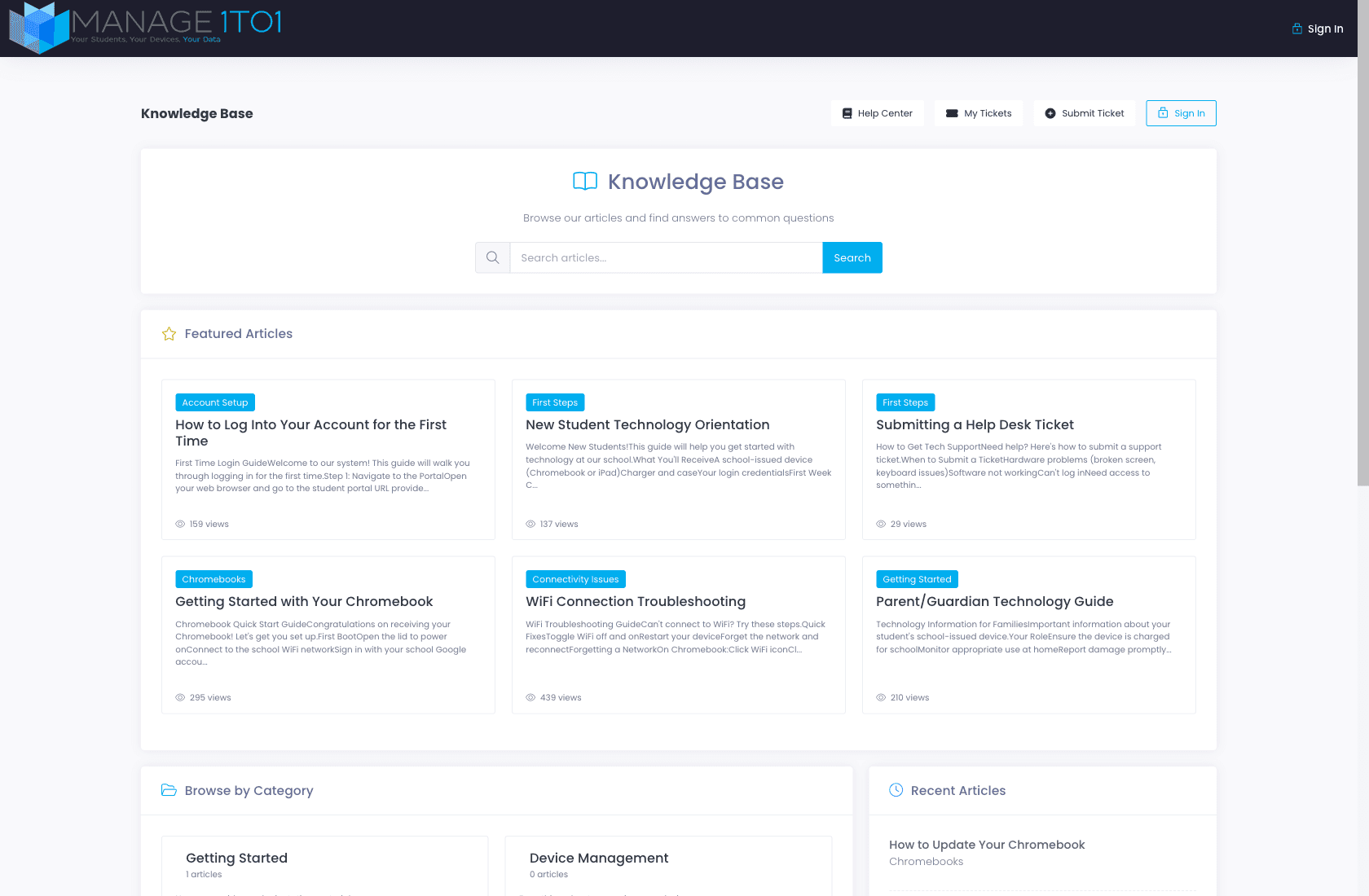
The Help Center is the front door, a search-first page with Featured Articles, browse-by-category navigation, and recent updates. Carries your district's logo and brand color. Staff, students, and guardians land here looking for an answer, and most of the time they leave with one.
- Search across every published article
- Featured Articles surfaced on the home page
- Browse by Category, Account Setup, Chromebooks, Connectivity Issues, and whatever else maps to your district
- Recent Articles sidebar, what changed lately
- Each article carries view count, category, and tags
Real-time ticket deflection
Surface help articles as users describe the issue.
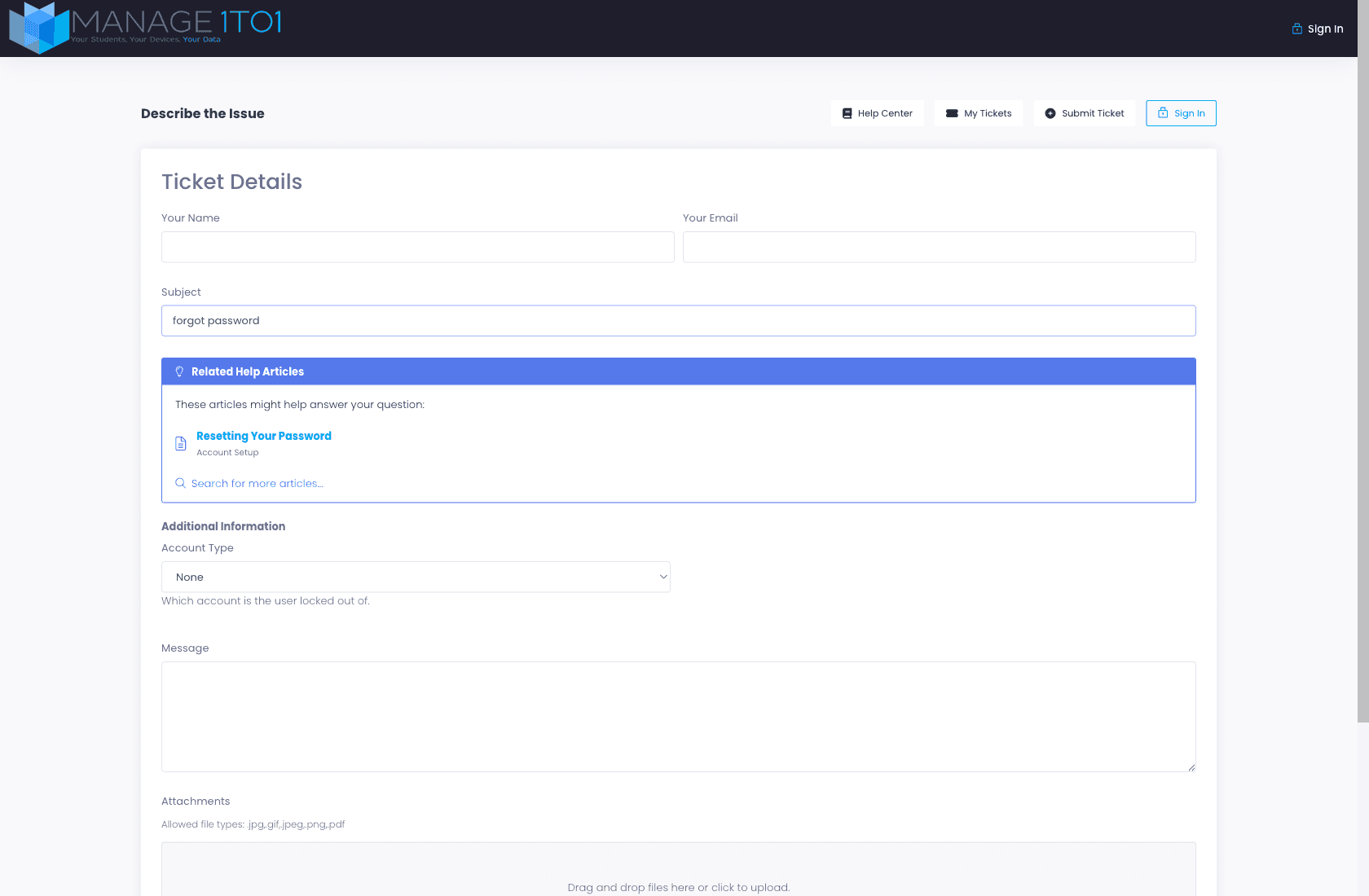
When a user starts a ticket from the portal, the moment they type a subject we hit the KB and surface matching articles inline, under a "Related Help Articles" callout right below the subject field. If the answer is already in the knowledgebase, they read it and never submit. Less queue load, faster resolution for the user.
- Article suggestions update as the user types the subject
- Configurable per department, Account Access pulls different articles than Device Repairs
- "Related Help Articles" callout sits right below the Subject field
- "Search for more articles..." link opens the full Help Center
- Articles open in a new tab, the ticket draft stays put
Article view + helpfulness
Articles that ask "Did this help?", and remember the answer.
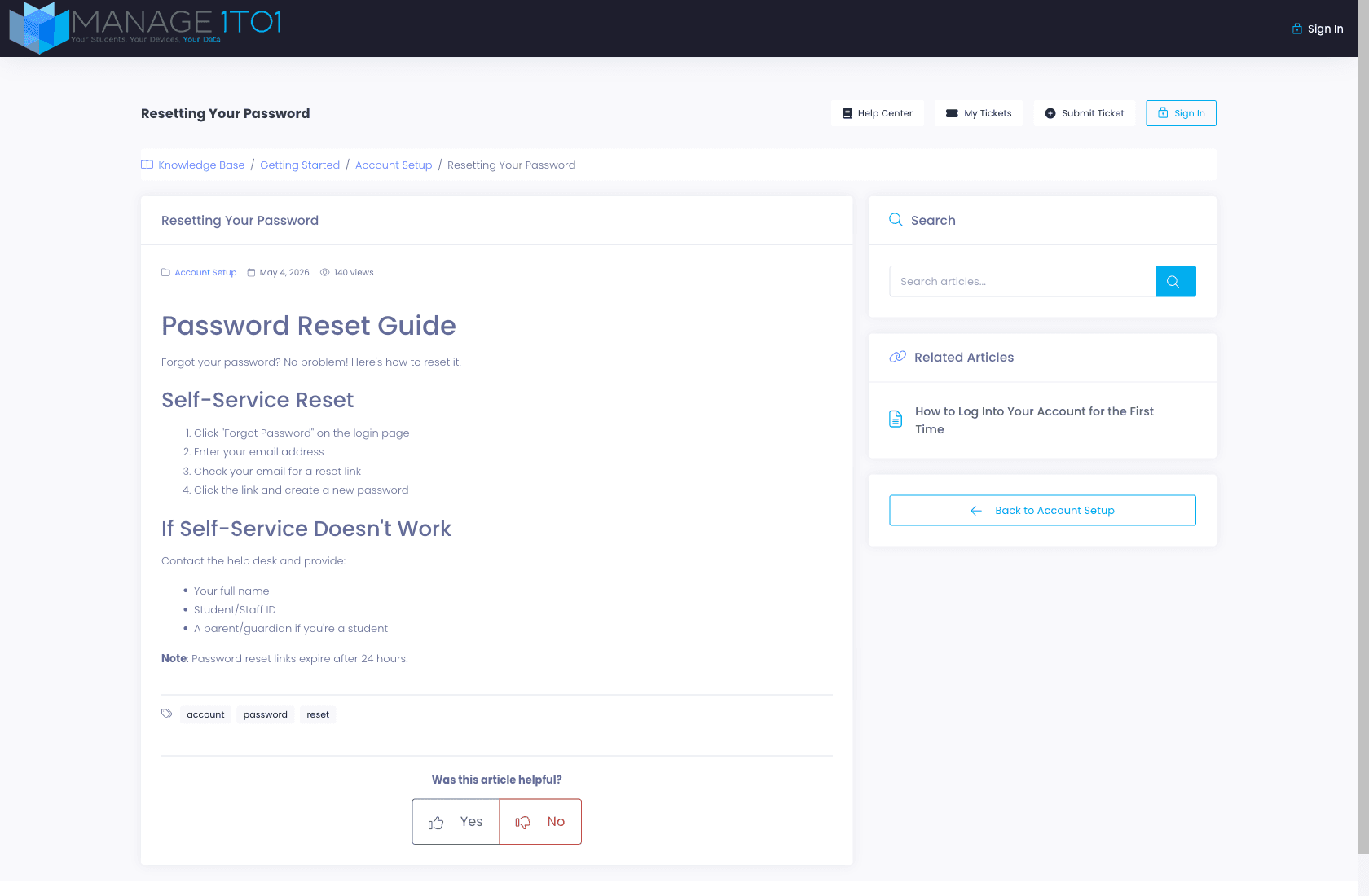
Every article carries breadcrumbs, the category, last-updated date, view count, and tags. At the bottom: a simple "Was this article helpful?" with Yes / No. Those clicks roll up into per-article helpfulness ratings so you know which articles are working and which need rewriting.
- Breadcrumbs + category + last-updated date on every article
- View count displayed inline
- Tags for cross-cutting topics (e.g., account / password / reset)
- "Was this article helpful?" Yes/No rating at the foot of every article
- Related Articles sidebar surfaces the next-best content
Admin analytics
Top performers. Popular searches. Zero-result searches.
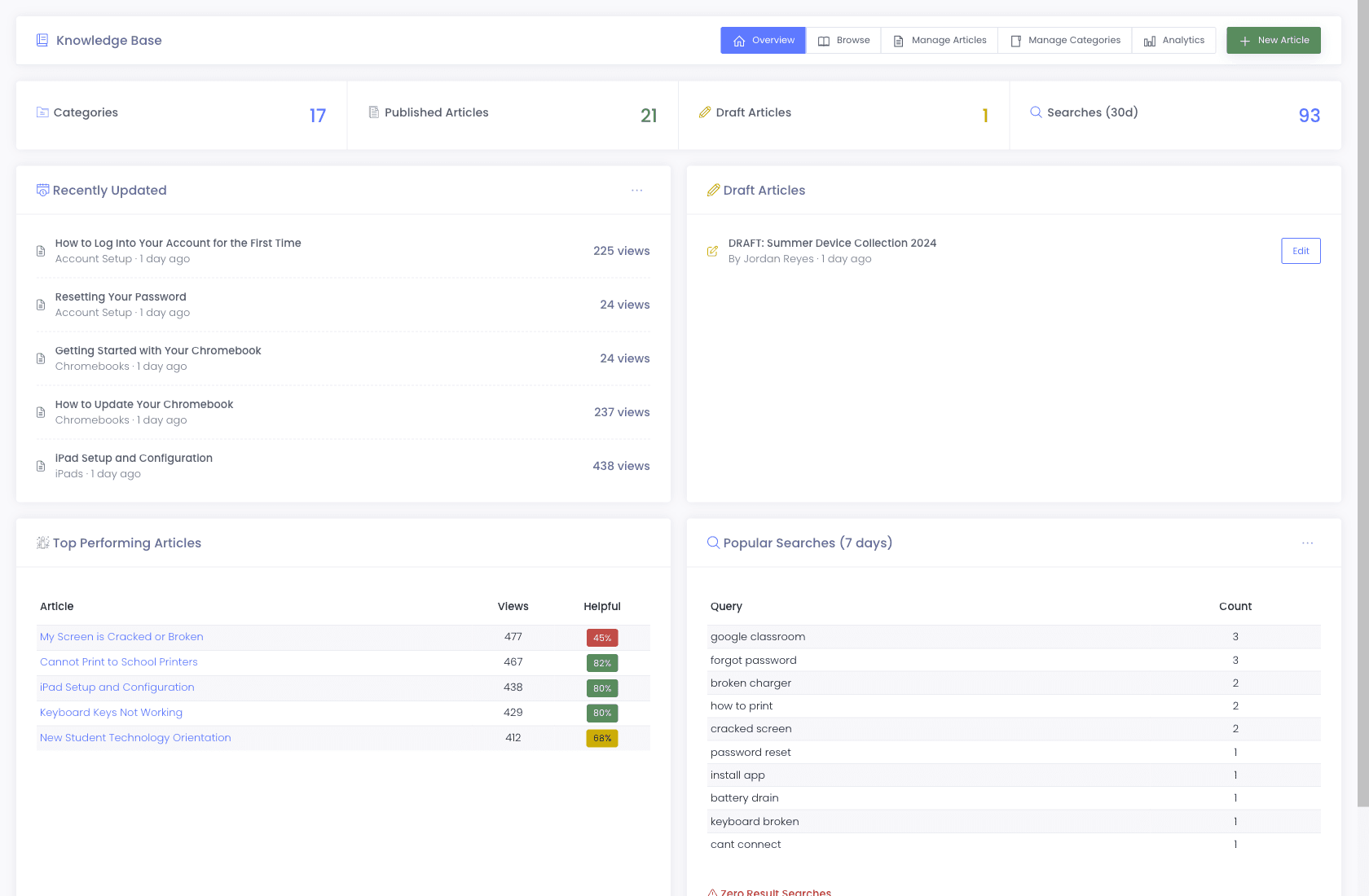
Behind the scenes the Knowledge Base admin shows you exactly what's working: top-performing articles ranked by views and helpfulness %, the most-searched queries over the last 7 days, and, most valuably, zero-result searches, the queries users typed that returned nothing. That last list is your roadmap for which articles to write next.
- Top Performing Articles, views + helpful % side-by-side
- Popular Searches table ranked by query volume
- Zero-Result Searches, what users searched for that the KB didn't answer
- Recently Updated articles with view counts
- Per-category and per-author breakdowns in the Analytics tab
Authoring + categories
Categories, drafts, and an audit trail.
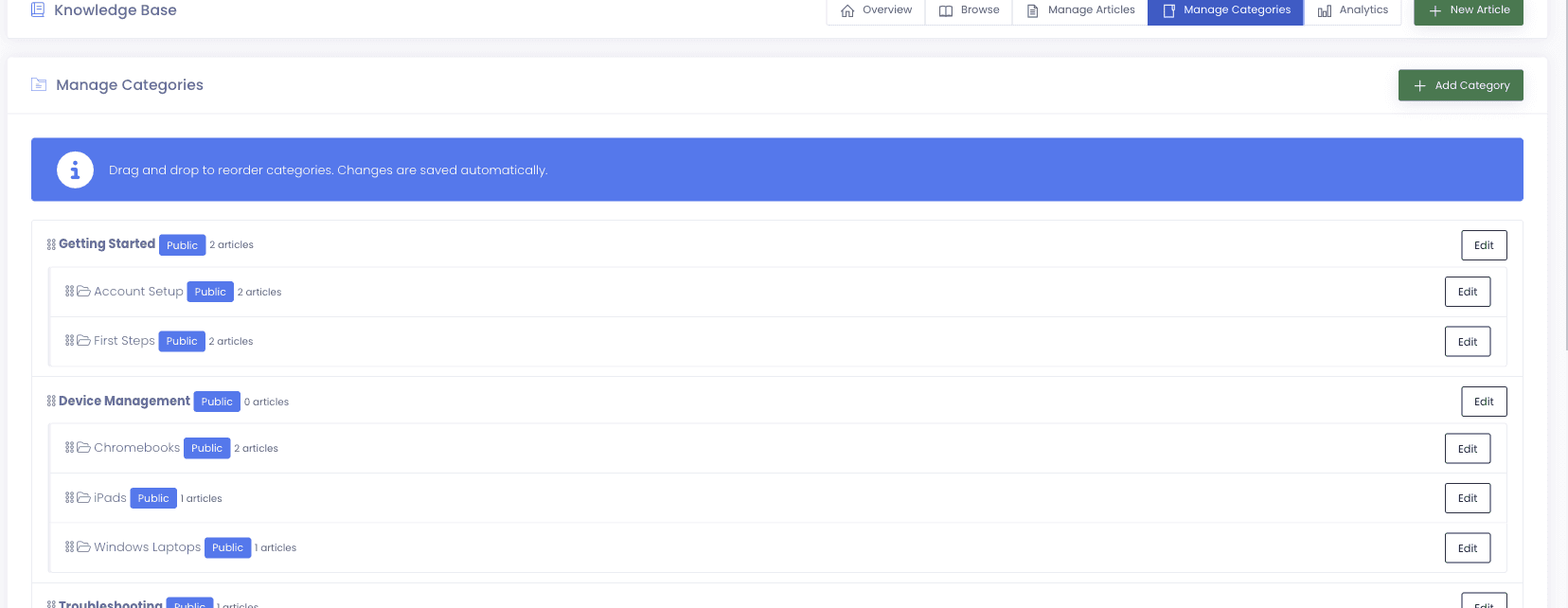
Articles live in district-defined categories, Account Setup, Chromebooks, Connectivity Issues, whatever maps to how your district thinks about IT. Drafts wait for review before they hit the public Help Center. Every change records an author and timestamp.
- Categories + tags for organization
- Draft / published states
- Author attribution + last-updated timestamps on every article
- Featured Articles surfaced on the Help Center home
- Article URLs match category + slug, so links you send today still resolve later
Why schools choose Manage1to1
Built for K-12. Not retrofitted from enterprise IT.
Cuts repetitive ticket volume
Password resets, Chromebook updates, WiFi connection, the questions your team answers every day are the questions deflection eliminates.
Built into the ticket flow
Users see articles as they type the subject. They don't have to know the Help Center exists; the portal surfaces it for them.
Data drives content
Zero-result searches and low-helpfulness ratings tell you exactly what to write next. No guessing what users need.
Branded for your district
The portal carries your colors, logo, and voice. Parents and students recognize it as a district resource, not a generic third-party tool.
FAQ
Common questions.
- As the user types into the Subject field on the Submit Ticket form, the portal queries the Knowledge Base in real time and surfaces matching articles in a "Related Help Articles" callout right below the Subject. Articles open in a new tab so the ticket draft stays put. If the article answered the question, the user closes out without submitting; otherwise they keep typing and submit.
- Yes. The portal carries your logo, brand color, and district name. Featured Articles, category navigation, and the Submit Ticket flow are all configured per district, parents and students see a portal that looks like part of your district website.
- Admin users with KB authoring permission. Articles go through a draft → published flow, drafts sit in "Draft Articles" on the admin Overview until they're ready to ship.
- A generic FAQ is static, users have to know it exists, find it, and search it. The Self-Service Portal is integrated into the ticket flow, so articles get surfaced at the moment of need. It also tracks usage data (views, helpfulness, popular searches, zero-result searches) so you know what content is working and what to write next. Generic FAQs don't give you that feedback loop.
- A user typed a query into the Help Center search and no articles matched. That's the most valuable analytic in the portal, it tells you exactly what your users need answers to and don't have answers for. Each zero-result query is a candidate for a new article.
- No. The Help Center is browsable without an account, search, read articles, rate them. Sign-in is required for the My Tickets view (so users only see their own requests).
See it in action
Stop answering the same five questions every day.
Request a free demo and walk through the full flow, a user typing a Subject, the KB articles surfacing inline, the analytics that tell you what to write next.
- Quote tailored to your enrollment + SLA tier
- Migration plan from your current help-desk / asset tool
- Integration map for your MDM, SIS, and payment processor
- Honest answers, our team is all former K-12, we know what the product does and doesn’t do
Prefer the shared demo first? Try it at manage1to1.com/demo.