
Chromebook management software for the part Google doesn’t do.
The Admin console tells you a Chromebook exists, what OU it sits in, and when it last checked in. It cannot tell you which student had it in March, what the screen repair cost, whether the family ever paid, or whether the device is worth repairing given its Auto Update Expiration date. We own that half, read from the console for the rest, and keep both on one record.
Two clocks, not one
The hardware outlives the updates, and only one of those retires the device.
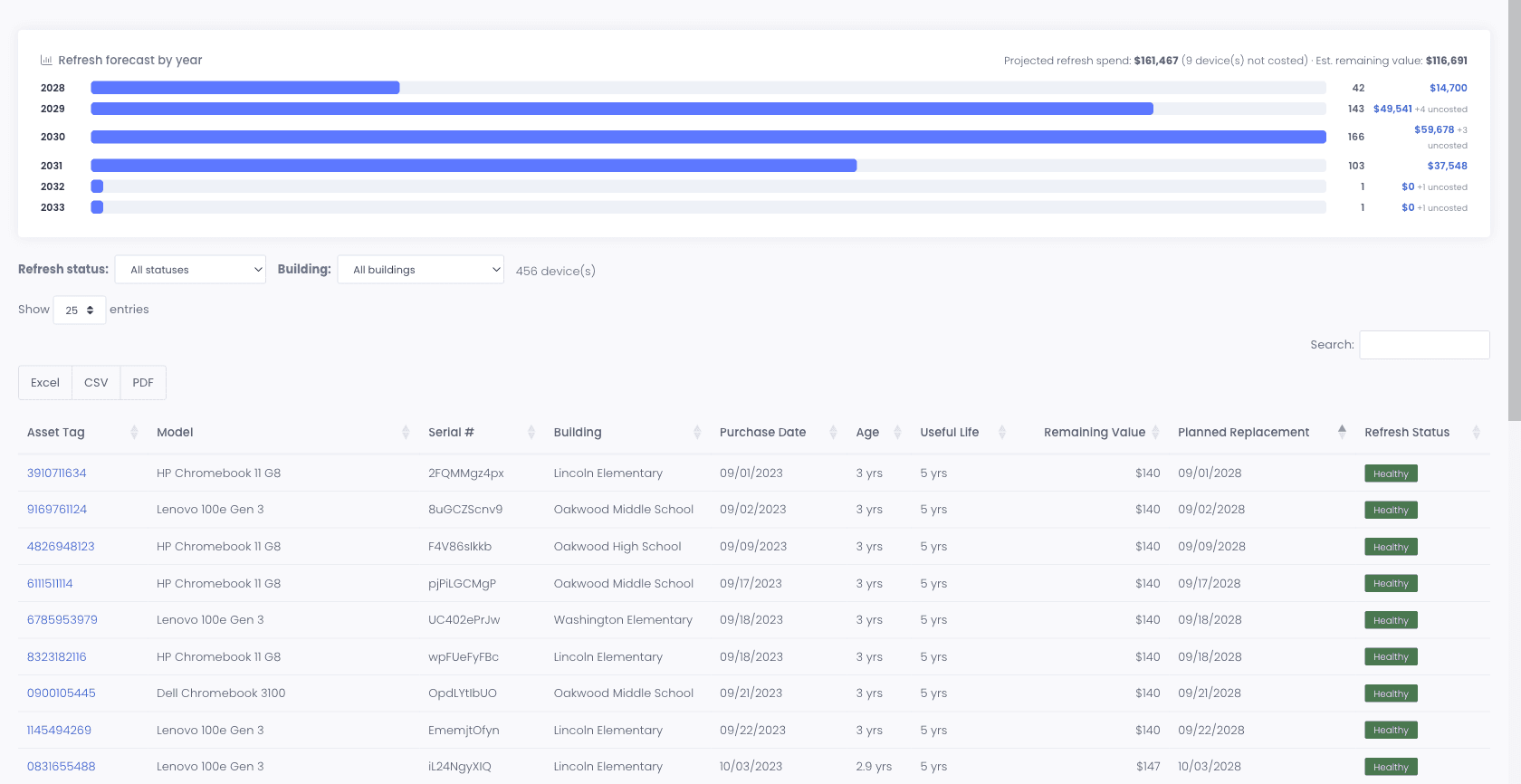
Every Chromebook in your fleet is running two timers. The chassis will physically survive five to eight years of a middle schooler. Google’s Auto Update Expiration date arrives on its own schedule and does not care how good the hinge still is. Districts that plan against the hardware clock end up running unsupported devices on their network; districts that plan against AUE alone throw away working hardware early. You get both clocks on the record: the AUE date synced from Google onto every device, and a refresh forecast built from useful life and replacement cost, with a dollar figure attached.
- Each device carries its Support Until (AUE) date from the Chrome Device Console, and the Expiring Devices report lists the ones approaching it
- Useful life and replacement cost set per model or per category, inherited down your category tree
- A dated, dollar-figured replacement forecast you can hand to the business office, filterable by building
- Estimated remaining value per device, with an optional salvage floor so it never reads below what the unit is still worth
- Battery health synced from the Chrome Device Console, so the batteries wearing out surface before they strand a student mid-class
- Refresh status on the admin dashboard, remaining value on the device profile itself
Org units
A student changes grade. Thirty policies should follow without a ticket.
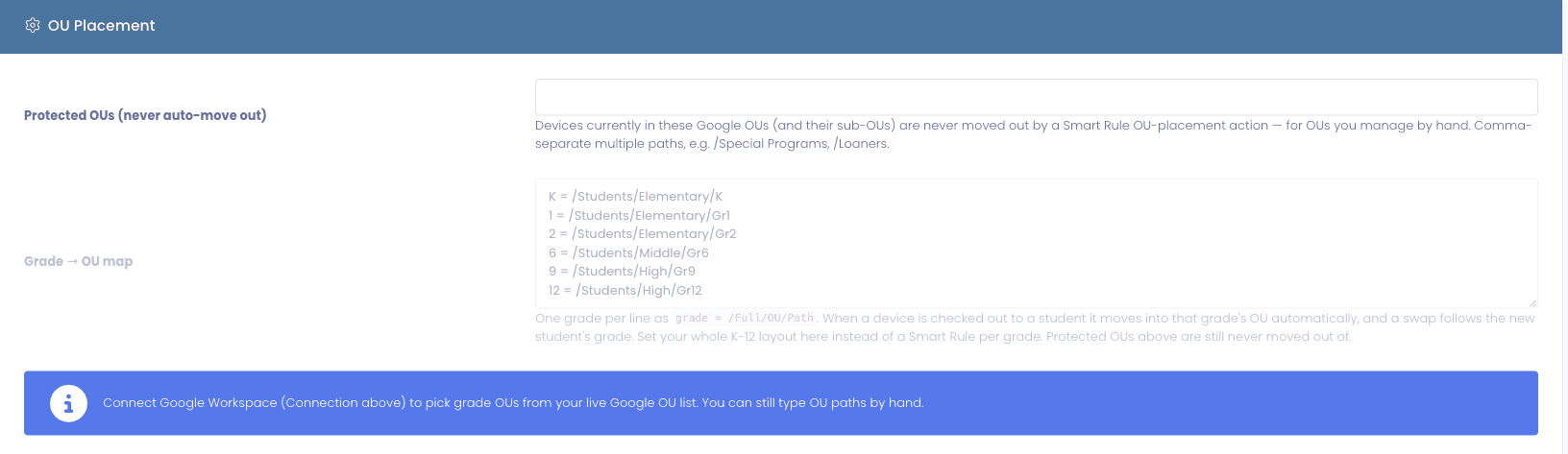
Most districts encode grade-level policy in their Google OU tree, then spend August moving devices between OUs by hand, or maintaining one automation rule per grade. Set the whole K-12 layout once as a grade-to-OU table instead. When a device is checked out the placement follows the student, and a swap follows the new student’s grade.
- One table maps every grade to a full OU path, replacing a rule per grade
- Placement applies on checkout and on device swap, without anyone opening the Admin console
- Pick target OUs from a live picker that reads the org units straight from your Google integration, or type paths by hand
- Protected OUs you mark off-limits are never auto-moved out of, so Special Programs and Loaners stay where you put them
- Map OUs to buildings, so a device that moves building in Manage1to1 lands in the right OU, and an OU change in Google updates the building here
- Automation rules can still move a device on status, building, or grade change for the cases a table does not cover
What the console cannot tell you
Last sync is not a location, and a serial is not a history.
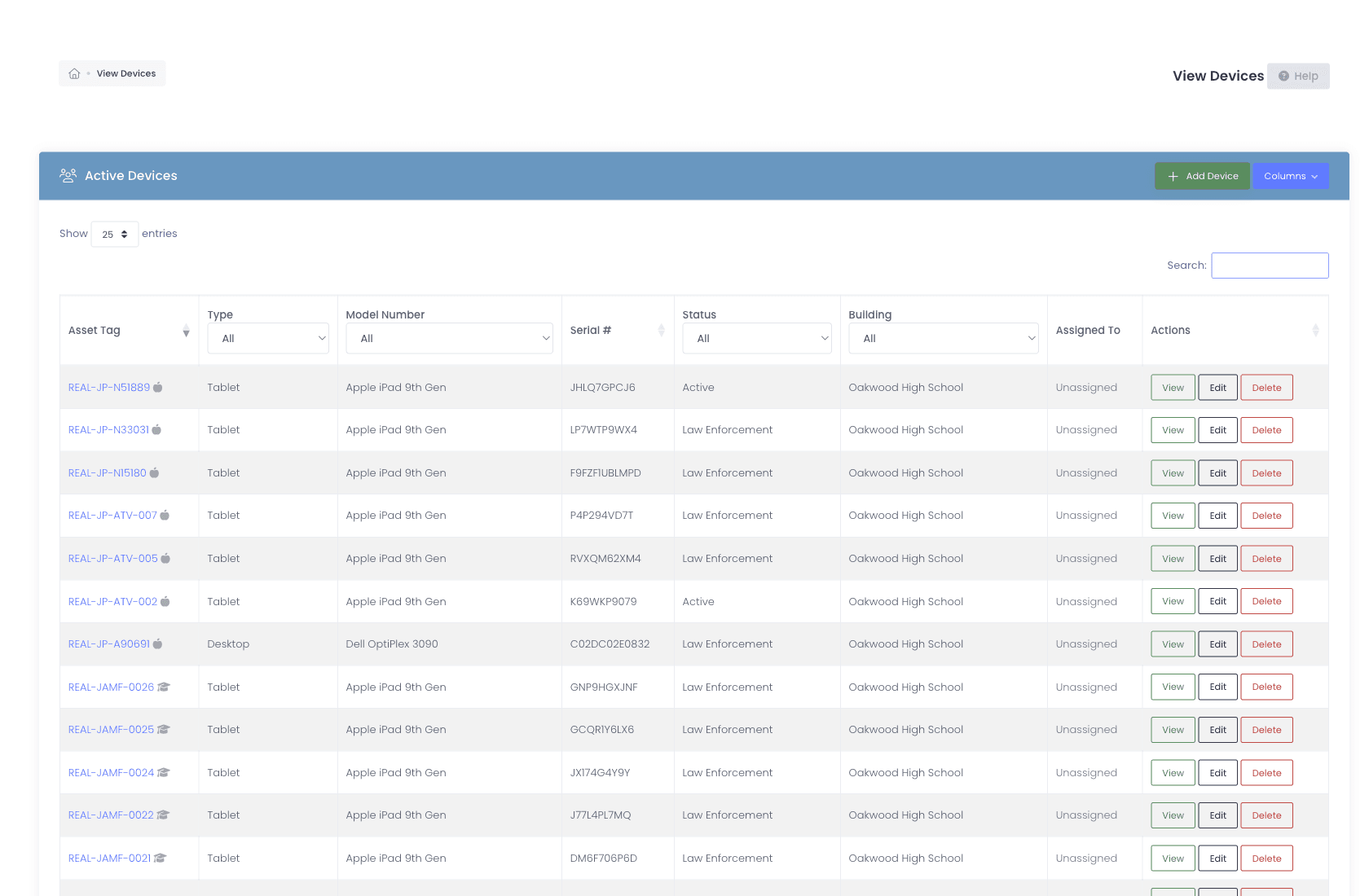
The Chrome Device Console is authoritative about enrollment and policy and says nothing about custody. When a Chromebook goes missing, the question is not what OU it was in, it is who had it, when they were issued it, and what happened to it last. That record is the one that actually recovers devices.
- Chrome Device Console sync: serial, annotated user, OU, OS version, AUE date, storage, boot mode, battery health, last sync
- Write-back on every path that changes hands, single-device, Rapid, and bulk check-out and check-in, setting Annotated Asset ID and Location alongside the user
- Full custody history: who has it now, who had it before, when, and from which building or cart
- Devices Google reports as deprovisioned move to a status you choose instead of returning as new inventory
- Granting new scopes later, device telemetry for example, is a re-authorization in place rather than a teardown that loses your history
When it does not come back
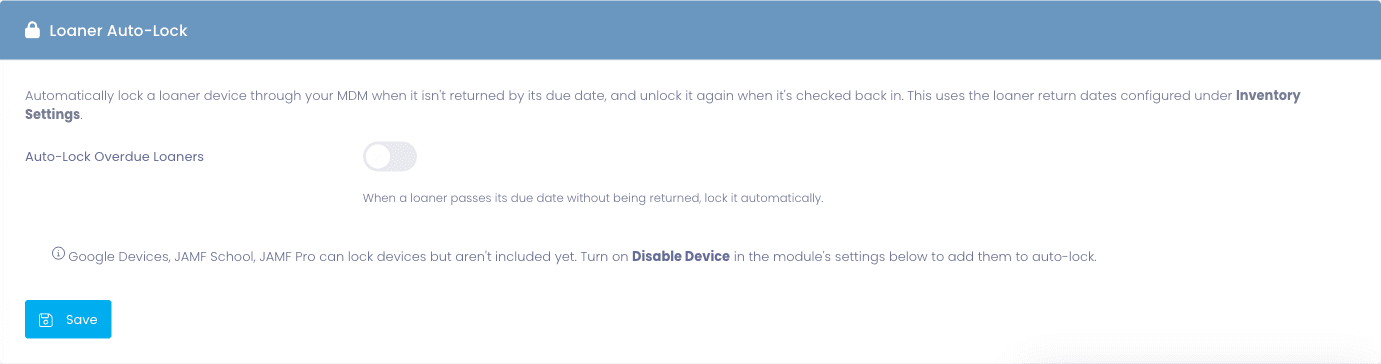
An overdue loaner should lock itself, and unlock when it is returned.
A loaner that misses its return date usually gets an email, then another, then a phone call from the front office. Disabling it in the Admin console works, until somebody forgets to re-enable it on return. Here the lock and the unlock are both driven by the check-in record, through Google, so nobody has to remember either step.
- Loaner Auto-Lock disables an overdue loaner through Google once it passes its return date plus any grace period you set
- Checking the device back in re-enables it automatically
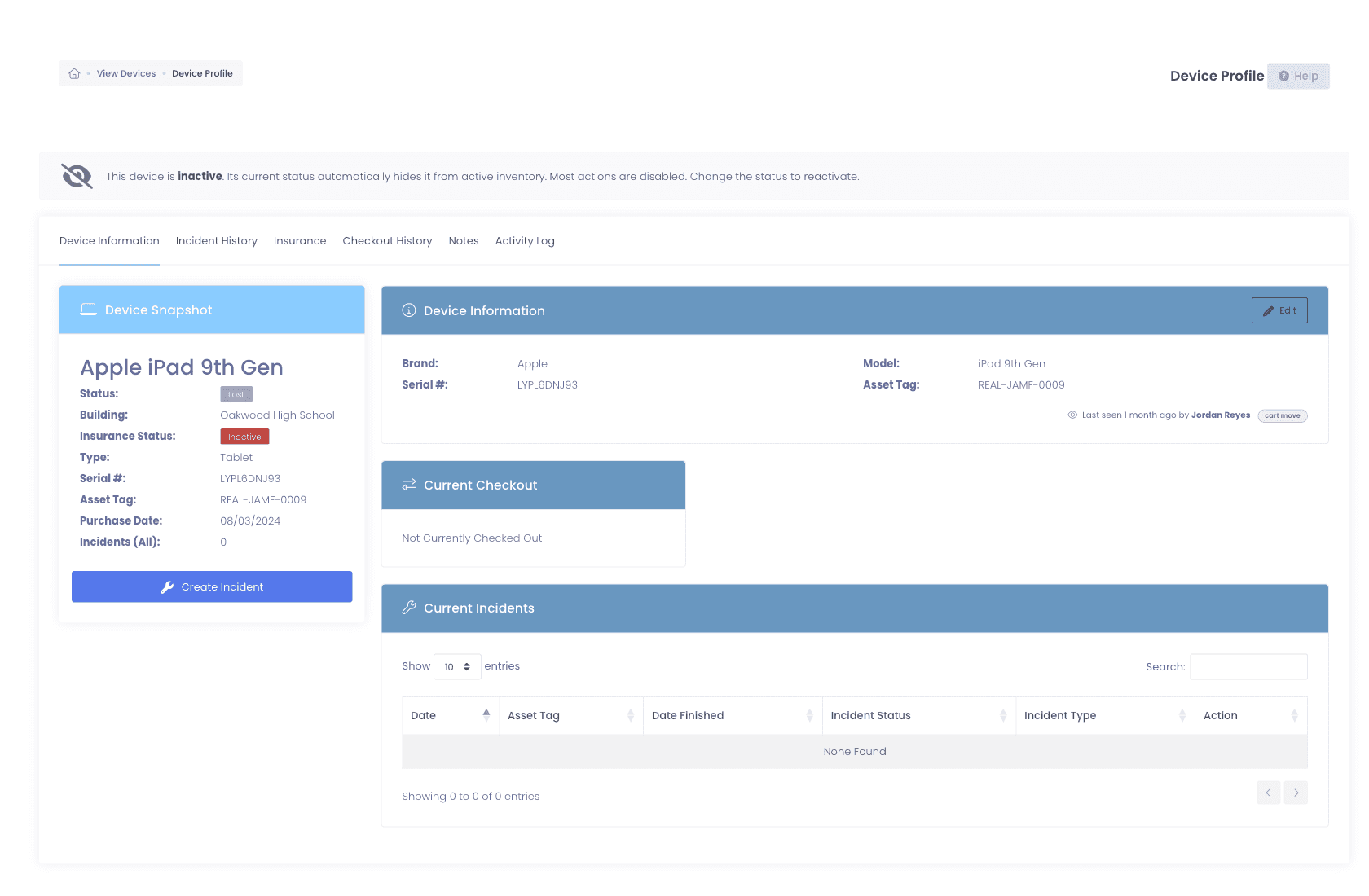
- Disable or re-enable any Chromebook from its device profile without opening the Admin console
- Lost Mode disables the device and puts your contact message on its screen, so whoever finds it knows where it belongs
Cracked screens
The repair is cheap. The paperwork around it is what costs you.
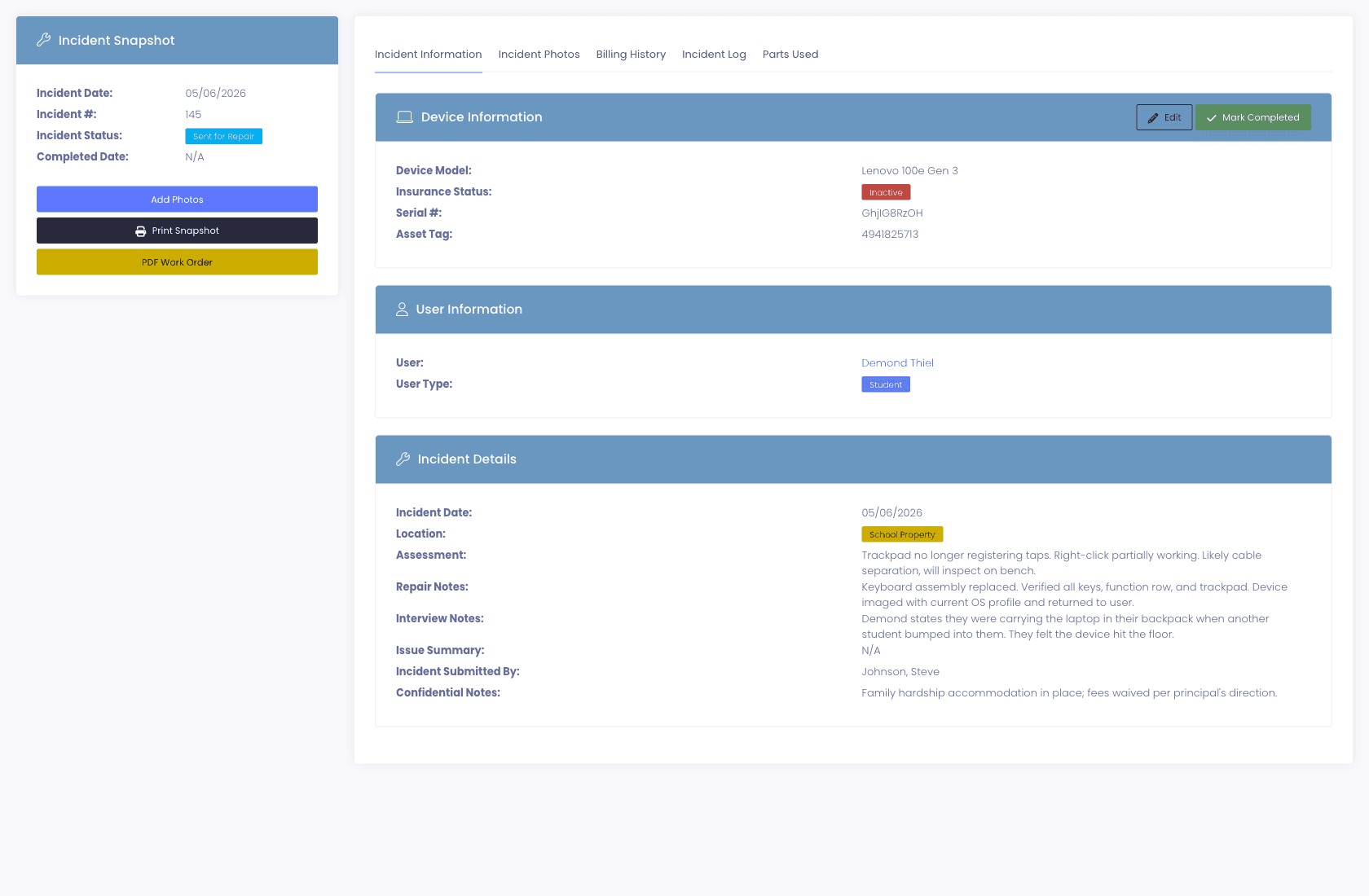
A non-touch Chromebook panel runs roughly $20 to $50 in parts against a $350 to $450 replacement device, so the repair is nearly always worth doing. What makes screen repair expensive at district scale is everything around the part: identifying the device, capturing the damage before it is disputed, tracking the unit through the bench, and deciding what the family owes.
- Damage captured as a photo flow rather than a text field, so the record carries the image, the date, the device, and the student
- Repair tracked from intake through bench to ready-for-pickup, with the Loaner Queue showing who is holding a spare while their device is on the bench
- Parts inventory drawn down as repairs consume it, kept separate from the devices issued to students
- Repeat-incident thresholds surface a pattern before it becomes an argument with a parent
- One incident covering several devices bills onto one invoice, with a line per device
Who pays
The charge should come from the damage, not from a spreadsheet in June.
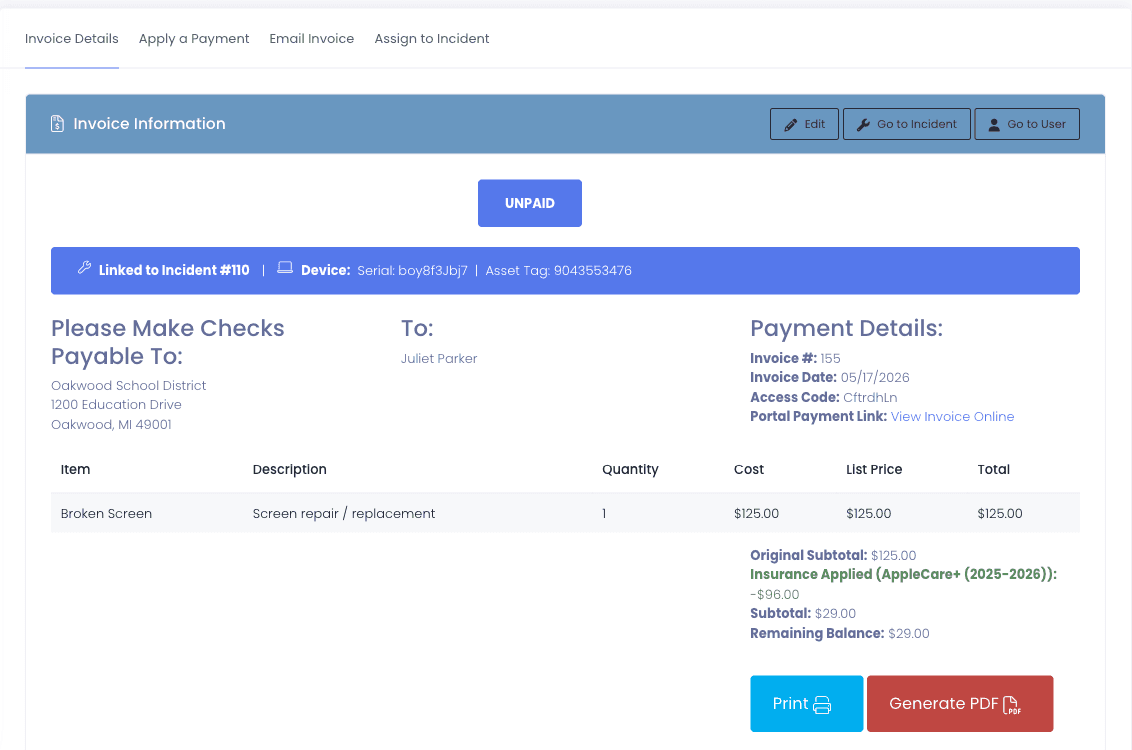
Billing a family for a broken Chromebook is the part of a 1:1 program that most often falls out of the system entirely. The invoice gets built by hand, tracked in a spreadsheet, and reconciled against a payment portal nobody in IT can see. Here the invoice is generated from the incident, carries the device serial and the damage line items, and the payment posts back against the incident that started it.
- Generate the family invoice directly from the incident, with device and line items pre-populated
- Families pay online through the processor your district connects: ConnexPoint, Stripe, Square, PayPal, SchoolPay, and others, or record cash and check at the counter
- Insurance premiums can be waived for free/reduced students, with an optional notice telling those families they are covered at no cost
- Waiving is a first-class, permission-gated action that preserves the original invoice for the audit
- Open Invoices, Payment Transactions, and Repeat Offenders reports, each exportable to CSV for the business office
The June number
Count the carts without checking anything in or out.
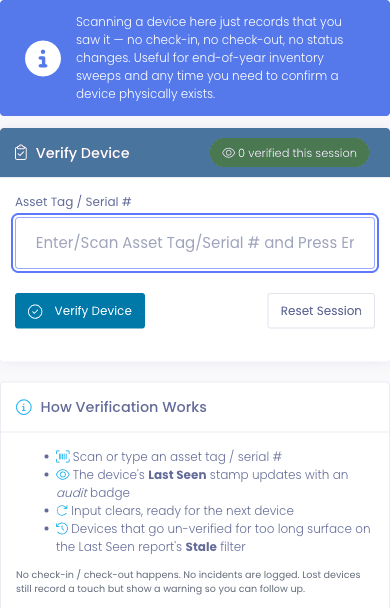
Chromebooks live in carts, and carts move. Verifying a fleet should not mean checking devices in and out, which changes assignment and creates bookkeeping you then have to undo. Rapid Verify records that someone physically saw a device and changes nothing else, from any phone with a camera.
- Scan from a phone, no USB scanner and no hardware budget for the audit team
- Verifying stamps Last Seen and leaves lease, status, and location untouched
- Roll-call scan a single cart or room to confirm everything that should be there is, with the missing devices named
- Stale filter surfaces every device nobody has laid eyes on inside your chosen window, per building
- Schedule recurring audit windows so verification is part of the year rather than something somebody remembers
Why schools choose Manage1to1
Built for K-12. Not retrofitted from enterprise IT.
We read the console, we do not replace it
Google stays authoritative for policy and enrollment. We own custody, condition, cost, and the money, and keep them attached to the same device record.
Chromebooks are not the only thing you own
The iPads, Macs, and Windows laptops sit on the same asset record with the same history. A Chromebook-only tool leaves the rest of the fleet on a spreadsheet.
AUE is a budget input, not a surprise
The AUE date sits on every device and refresh planning puts a dollar figure on the replacement cohort, so it shows up in the budget before it shows up as a problem.
The bill does not grow with the fleet
Per-student pricing, published. Adding a thousand Chromebooks does not change what you pay, and every tier includes every feature.
Still comparing
Already running something for your Chromebook fleet?
Most districts arriving here have a Chromebook tracker, a help desk, and a billing spreadsheet that do not talk to each other, or a quote from someone who sells all three as separate modules. Our pricing is published and every tier includes everything.
FAQ
Common questions.
- No, and you should be suspicious of anything that says it does. The Chrome Device Console stays authoritative for policy, enrollment, and org-unit structure. We read from it on a schedule and own the half it has no opinion about: which student has the device, what happened to it, what the repair cost, and whether the family paid. The two together give you a device record that answers both kinds of question. Neither does it alone.
- Map each grade to a full OU path in one table, and placement applies automatically when a device is checked out to a student, with a swap following the new student’s grade. That replaces maintaining an automation rule per grade. If your Google Workspace connection is live you pick the target OUs from a picker that reads your actual org units, rather than typing paths and hoping. Any OU you mark Protected is never auto-moved out of, which is how Special Programs and Loaner OUs stay intact.
- Nothing automatic, because that is a budget decision rather than a status change. What you get is the date as a planning input. Each Chromebook carries its Support Until date from Google, the Expiring Devices report lists the ones approaching it, and refresh planning turns useful life and replacement cost into a dated, dollar-figured forecast, so next year’s replacement cohort shows up as a number in a board packet instead of a surprise in August. Estimated remaining value on each device tells you what the unit is still worth, which is usually the argument for repairing rather than replacing.
- For a district, almost always. A non-touch panel runs roughly $20 to $50 in parts against a $350 to $450 replacement device, and districts buy parts in volume and have staff who can do the swap in minutes. The threshold usually has more to do with the device’s remaining Auto Update Expiration window than with the cost of the panel: a screen on a device with four years of updates left is obviously worth doing, and the same screen on a device expiring in June usually is not.
- Yes, and the charge comes from the incident rather than a spreadsheet. Generate the invoice directly from the damage record and it carries the device serial and the line items. Families pay online through the payment processor your district connects (ConnexPoint, Stripe, Square, PayPal, SchoolPay, and others), and the payment posts back against the originating incident. If you run a device insurance program, the premium can be waived for free/reduced students so those families are covered without an invoice.
- Yes, on the same asset record. We sync from Google Workspace for Chromebooks, JAMF Pro, JAMF School, or Apple School Manager for Apple devices, and Microsoft Intune, Microsoft SCCM, or FileWave for Windows and mixed fleets. That matters more than it sounds: a Chromebook-only tool means the rest of your fleet lives somewhere else, and year-end reporting becomes a reconciliation exercise.
- Yes. Check-out and check-in write the assigned user back to the Chrome Device Console, along with the Annotated Asset ID and Location, and it fires on every path that changes hands rather than only the single-device flow. Devices Google reports as deprovisioned are moved to a status you choose instead of being re-imported as new inventory, which is the behavior that otherwise quietly inflates a device count.
See what fits your district
Put the Chromebook fleet on one record.
Tell us your fleet size, your Google setup, and how you handle damage billing today. We will reply with a quote, a migration plan, and an honest read on what the platform does and doesn’t do. Our entire team is former K-12, so we will also tell you which parts of your current process software will not fix.
- Quote tailored to your enrollment + SLA tier
- Migration plan from your current help-desk / asset tool
- Integration map for your MDM, SIS, and payment processor
- Honest answers, our team is all former K-12, we know what the product does and doesn’t do
Prefer the shared demo first? Try it at manage1to1.com/demo.